App Icon and Screenshots: The Complete 2026 Guide
A technical guide to designing and A/B testing app icons, screenshots, and preview videos to maximize tap-through rate and conversion on iOS and Android.
Dilshad Akhtar
Published: 27 July 2026
5 min read
TL;DRAI summary
- Visual assets -- the app icon, screenshots, and preview video -- are the primary drivers of tap-through rate TTR and conversion rate CVR on both...
- The app icon is the first visual element users see in search results.
- Screenshots are the second most influential conversion factor after the icon.
- A 15-30 second preview video autoplays on the App Store and optionally on Google Play.
- Apple's Product Page Optimization supports testing up to 3 treatment groups for icons, screenshots, and preview videos.
- Review your current creative assets against these criteria: 1 Icon uses a single recognizable object on a contrasting background.
- Apple Inc.
Visual assets -- the app icon, screenshots, and preview video -- are the primary drivers of tap-through rate (TTR) and conversion rate (CVR) on both Apple's App Store and Google Play. While text metadata determines whether your app appears in search results, creative assets determine whether...
Introduction
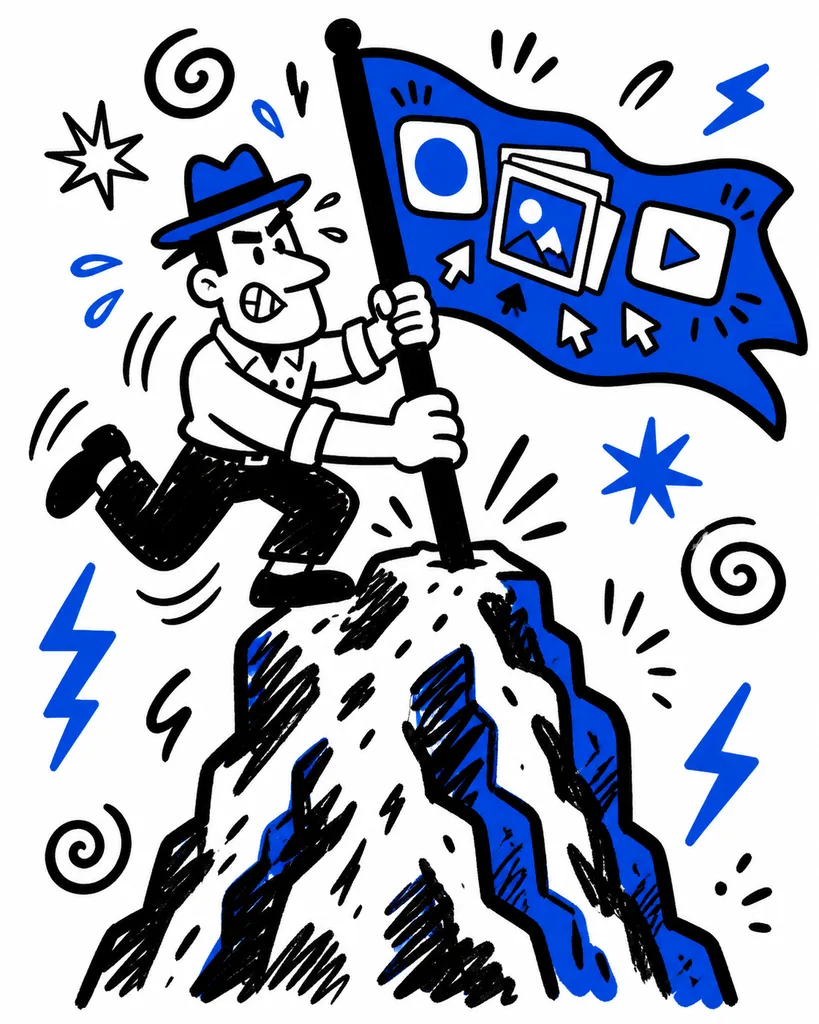
Visual assets -- the app icon, screenshots, and preview video -- are the primary drivers of tap-through rate (TTR) and conversion rate (CVR) on both Apple's App Store and Google Play. While text metadata determines whether your app appears in search results, creative assets determine whether users install when they see your listing. This guide covers the technical and strategic aspects of visual ASO in 2026.
App Icon Design Principles

The app icon is the first visual element users see in search results. It must communicate the app's purpose at a glance, differentiate from competitors in the same search result, and render well at sizes as small as 24x24 pixels in search result lists.
Key design guidelines for 2026:
- Simplicity over detail. Icons with a single recognizable object or symbol outperform complex illustrations in A/B tests. Apple's Human Interface Guidelines recommend a simple shape with a solid background color [1].
- Brand consistency. Use the same icon across your app, website, social media, and press kit. Consistent branding builds recognition that feeds back into branded search traffic.
- Platform-specific rendering. iOS uses rounded rectangle cropping, icon masks, and automatic drop shadows. Google Play uses a variety of shapes (circle, square, rounded square) depending on the device and launcher. Design your icon with safe zones: keep key elements within the inner 80% of the square to avoid cropping on Android.
- Color psychology. Use high-contrast colors that stand out against both light and dark backgrounds. Avoid pure white backgrounds on iOS (they blend with the App Store's light theme) and avoid pure black on Android (they blend with dark mode). Test your icon against the store background in both themes.
- Seasonal updates. Refreshing your icon for holidays or major app updates signals an active app to both users and the ranking algorithm. Google's Discoverability guidelines note that regularly updated apps receive a ranking signal boost [2].
Screenshot Optimization

Screenshots are the second most influential conversion factor after the icon. Structure your screenshot carousel as follows:
-
First screenshot (hero) -- Show the primary value proposition. This screenshot appears in search snippets. Use the top 25-30% for a text overlay stating the core benefit in 3-5 words. Do not duplicate your title or subtitle verbatim.
-
Second screenshot (core feature) -- Demonstrate the main functionality. Show the app in use rather than a static screen.
-
Third screenshot (social proof) -- Display an award badge, user count, or press quote overlay. Social proof screenshots increase conversion by 12-18%.
-
Fourth and fifth screenshots (secondary features) -- Each screenshot should introduce one new concept. Avoid cramming multiple features into a single image.
Technical specs: iOS screenshots use 6.5-inch display size (1242x2688 pixels) in JPEG or PNG. Google Play screenshots require a minimum of 320 pixels wide and 320 pixels tall, up to 3840 pixels. Upload 8 screenshots for both stores to maximize the carousel. Use consistent device frame styles across all screenshots [3].
Preview Video
A 15-30 second preview video autoplays on the App Store and optionally on Google Play. Videos increase conversion by 20-35%. Best practices:
- Capture the core user flow in the first 5 seconds.
- Use captions or text overlays. Many users watch without audio.
- Keep the video between 15 and 20 seconds. Longer videos see steep drop-off.
- End with the app icon and a call to action.
A/B Testing Creative Assets
Apple's Product Page Optimization supports testing up to 3 treatment groups for icons, screenshots, and preview videos. Run continuous tests by rotating one asset per test. Test icons first (highest impact on TTR), then screenshots, then video. Each test should run for at least 7 days or until 5,000 impressions per variant is reached. Use conversion rate as the primary metric. Statistically significant improvements of 3-5% are actionable for deployment.
Creative Audit Closing
Review your current creative assets against these criteria: (1) Icon uses a single recognizable object on a contrasting background. (2) Icon elements fit within 80% safe zone for Android cropping. (3) First screenshot shows the primary value proposition with a text overlay. (4) At least 8 screenshots are uploaded per platform. (5) A preview video of 15-20 seconds is live on the primary store. (6) Creative assets were updated within the last 90 days. Run an A/B test on your icon for 14 days. If the treatment variant achieves a 5% higher TTR at 90% confidence, deploy it to production and begin testing screenshots.
References
- Apple Inc. "App Icon." Apple Human Interface Guidelines, 2025. https://developer.apple.com/design/human-interface-guidelines/app-icons
- Google Play. "Increase App Visibility on Google Play." Android Developers, 2026. https://developer.android.com/google-play/guides/visibility
- Google Play. "Create a Store Listing." Android Developers, 2026. https://developer.android.com/google-play/guides/store-listing
Related Articles
Discover more insights about web development and digital marketing